Storing ID documents on iPhone
By Bishop Technology Solutions, LLC, the maker of Bishop Vault. Facts checked October 25, 2026.
How to keep scans of your ID, insurance cards, and important papers safe, and still find them when you need them.
The short answer
Keep the paper originals locked up. Keep the scans in a place that is encrypted and has its own passcode, not mixed into your camera roll. Name them so you can find them, or use an app that reads the words on a scan so search can. Keep passwords in a password manager, not in your scans. And before you scan anything, check that the document is one you should copy at all.
Why keep scans at all
A scan doesn’t replace the original, but it helps a lot on a bad day: a lost wallet, a stolen bag, a trip where you need an insurance card number, or a form that asks for a policy number you can’t remember. The trouble is that a scan of an ID is exactly what someone wants if they get into your phone, so where you keep it matters more than the scan itself.
Good candidates for scanning: your insurance cards, vaccination and medical records, a lease, a car title or registration, warranties and receipts for big purchases, and your driver’s license or state ID if you are comfortable having a copy. Social Security cards, passports, and birth certificates need more care, so read the next two sections before you scan them.
Keep the originals locked up
The Federal Trade Commission’s guide to which documents to keep puts Social Security cards, valid passports and citizenship or residency papers, and birth certificates or adoption papers under “keep forever and lock up.” It also says that when you dispose of documents with your personal or financial information, you should shred them. A scan is a backup. Keep the originals locked up.
Some documents shouldn’t be scanned at all
Check before you copy. The rule for each document comes from whoever issued it, and a service you use may tell you not to upload an image of it.
- Military and other U.S. government ID cards. An Army article from 2009 says that photocopying U.S. government identification cards, including military ID and Common Access Cards, is a violation of Title 18, U.S. Code Part I, Chapter 33, Section 701, and that the prohibition does not apply to government agencies. It suggests offering a state driver’s license if a business asks for a copy. That article is old and is not legal advice, so check the current rules for your card.
- Your ID in Apple Wallet. Apple says the license or ID data in Wallet is encrypted, that a record of where you presented it is stored only on the device you used, and that screenshots of the information screen can’t be taken. It also says ID in Wallet is not a replacement for a physical ID. If your state supports it, using Wallet means you don’t need a photo of your license at all.
- Anything a website or service tells you not to photograph or upload. Follow the instruction.
We could not confirm a rule for other documents, such as passports, so we left them out. Check with the issuing agency before you rely on a copy for anything official.
Where to keep the scans
Your camera roll is the easy answer and the weakest one. Photos of your documents sit among everything else, anyone who borrows your phone can swipe past them, and with iCloud Photos they travel to your other devices. Apple also notes that by default it holds the encryption keys for most iCloud data, which is how it can restore your data if you lose a password. Apple’s optional Advanced Data Protection changes that for most iCloud data, and it works only if you turn it on and keep a recovery contact or recovery key.
A better place is somewhere with its own passcode that encrypts each file before it is stored. That can be an encrypted disk image on a Mac, a password manager that stores files, or a vault app. Bishop Vault is built for this on iPhone, iPad, and Mac:
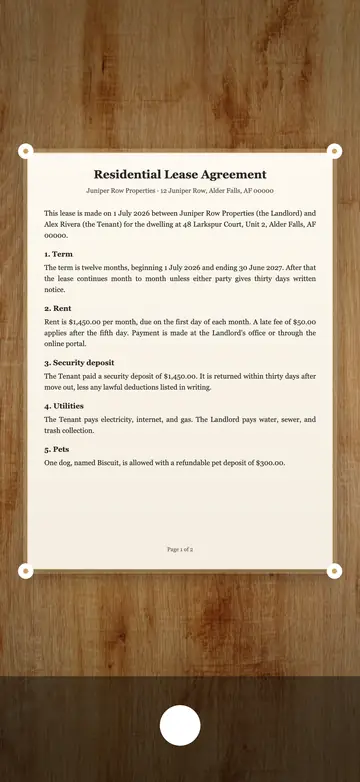
- Scan a document. The camera finds the page. Take as many pages as you need and tap Save.
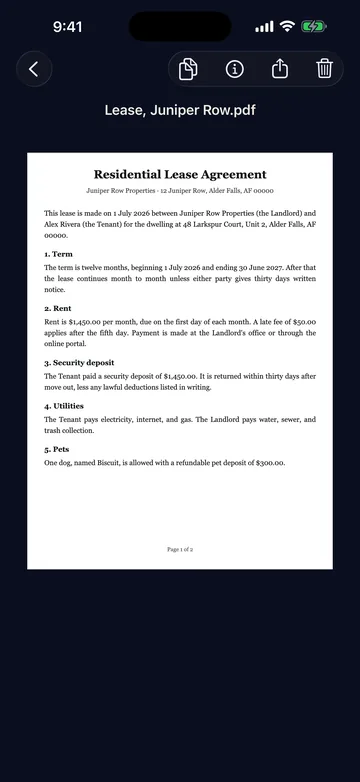
- It cleans the page. It whitens the paper, lifts shadows, and sharpens the text, so a page looks like a scan and not a photo.
- One PDF. The pages are saved as a single PDF in the vault, encrypted like everything else.
- Search finds the words. Scans are read on your device with optical character recognition (OCR), which turns the printed words in a photo into real text, so you can search for a word and find the page. The words never leave your device. They are kept encrypted next to the scan, so you can search “policy number” and find the card.
- Choose the look. Color, Greyscale, or Black and white.
- On a Mac, use Scan with iPhone or iPad, with the device nearby and signed in to the same Apple ID.
- After every scan, Bishop Vault removes any page images the camera left in its temporary files, and location data is removed from every photo and video as it comes in.
Read how the encryption works for the details. It protects against everyday snooping, such as someone looking through your phone. It can’t stop spyware already on your device, or someone watching you type your passcode. No outside security review yet.
Keep it findable
- Name things plainly. “Health insurance card, front and back” beats “Scan 0412.”
- Scan the back too, since phone numbers and member services are often there.
- Use albums for groups. Bishop Vault Plus adds albums, with names encrypted too. Without Plus, search still works across everything, with up to 25 items in each vault. See pricing.
- Put codes in a note, not a scan. Encrypted notes are good for recovery codes, safe combinations, and gate codes.
Passwords belong in a password manager
Don’t scan or photograph a page of passwords, and don’t keep them in a note. A password manager fills them in for you, warns you about reused ones, and is built for the job. Bishop Vault says the same in its own help: passwords belong in a password manager. Passcode fields in Bishop Vault are marked so your phone doesn’t offer to save the vault passcode in Passwords.
Don’t lose access
Any good vault is hard to get into without the passcode, and that includes for you. Keep your recovery kit somewhere other than your phone, and make a backup file after you add things. Bishop Vault has no account and no server. If you lose the kit and forget your passcode, no one can open the vault, not even Bishop Vault.
When you don’t need Bishop Vault
If you only have a few papers, the best answer may be a folder or fireproof box at home for the originals and Apple Wallet for your license where your state supports it. You don’t need a vault for that. A vault helps when you have many documents, travel often, want search across them, and want them behind a passcode of their own. Bishop Vault is coming soon.
Facts checked on October 25, 2026
- Which documents to keep and lock up, and shredding: Federal Trade Commission, “Protecting your personal information: Which documents to keep and which to shred,” June 10, 2025, https://consumer.ftc.gov/consumer-alerts/2025/06/protecting-your-personal-information-which-documents-keep-which-shred (read October 25, 2026).
- Photocopying U.S. government and military ID cards: U.S. Army, “Photocopying military, CAC IDs a violation of federal law,” October 7, 2009, https://www.army.mil/article/28452/photocopying_military_cac_ids_a_violation_of_federal_law (read October 25, 2026).
- ID in Apple Wallet: encrypted data, a record of where you presented it stored only on the device you used, no screenshots, not a replacement for physical ID: Apple Support, https://support.apple.com/en-us/111803 (read October 25, 2026).
- Apple holds iCloud keys by default, and Advanced Data Protection needs a recovery contact or key: Apple Support, https://support.apple.com/en-us/102651 (read October 25, 2026).
Facts about Bishop Vault come from its own help and source.
Keep reading
See how Bishop Vault encrypts your things, then read the comparison with Apple Photos, or about keeping private photos on a Mac or a private diary.
Coming soon to iPhone, iPad, and Mac.