Private photos on a Mac
By Bishop Technology Solutions, LLC, the maker of Bishop Vault. Facts checked October 25, 2026.
Four real ways to keep photos private on a Mac, what each one protects, and what each one doesn’t.
The short answer
For most people, the Mac already has a good start. Photos can lock an album behind Touch ID or your login password, and FileVault encrypts the whole disk, so a stolen Mac that is switched off is a locked box. Both are free and built in.
They don’t give your private photos their own passcode, and they don’t cover the other things people keep next to them, such as scans, notes, and files. For that you have two choices: an encrypted disk image, which is free but manual, or a vault app, which does the work for you. Pick by what you need to keep out of reach and who might be looking.
The four ways, one by one
1. The locked album in Photos
Apple’s Photos app can move a photo into an album that stays locked until you prove who you are. Apple says this album is locked by default on macOS Ventura and later, and that on a Mac you open it with Touch ID or your login password. On a Mac, Photos doesn’t even show the album until you turn it on in the View menu.
What it protects: a casual look. Someone who borrows your unlocked Mac and opens Photos won’t see those pictures in the main grid or in search.
What it doesn’t: it has no separate passcode. On a Mac the lock is Touch ID or your login password, so anyone who knows your login password can open it. And if you use iCloud Photos, Apple says photos you lock away on one device are locked away on your other devices too, so they still travel with iCloud Photos. It also covers photos only, not documents, notes, or other files.
2. FileVault
FileVault encrypts the data on your startup disk. Apple says Macs with Apple silicon or an Apple T2 Security Chip encrypt data automatically, and that turning on FileVault adds a step: no one can reach your data without your login password.
What it protects: your whole Mac against a thief or anyone who takes the disk. It is the single most useful setting on this page, and you should check it is on regardless of anything else you do.
What it doesn’t: it doesn’t separate private photos from everything else. Once you are logged in, your files are open to you and to anyone sitting at your logged-in Mac. And keep your recovery in order: Apple warns that if you forget your login password, can’t reset it, and also lose your recovery key, your files and settings are lost permanently.
3. An encrypted disk image
Disk Utility, the app already on your Mac, can make a disk image with a password: File, New Image, Blank Image, then choose an option from the Encryption menu and enter the password twice. The image is a file you open like a disk. Put your private photos inside, and close it when you are done. Apple warns that if you forget this password, you won’t be able to open the disk image or see any of the files.
What it protects: files while the image is closed. It has its own password, separate from your login password, and it works for any kind of file.
What it doesn’t: it is plain storage. There are no thumbnails to browse, no search across it, and no scanner. While the image is open, it behaves like any other disk, so you have to remember to close it. Nothing locks it for you when the Mac sleeps. There is no recovery code either: lose the password and the files are gone.
4. A vault app
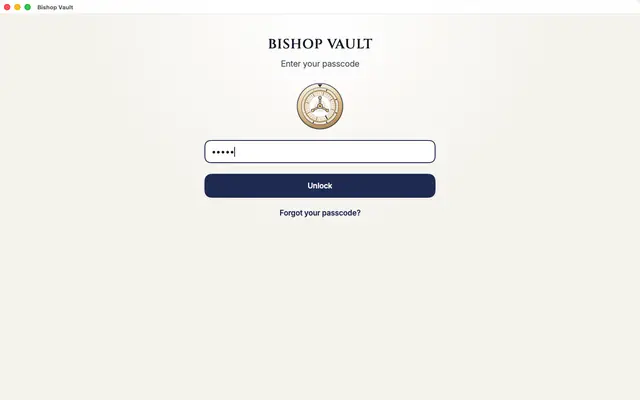
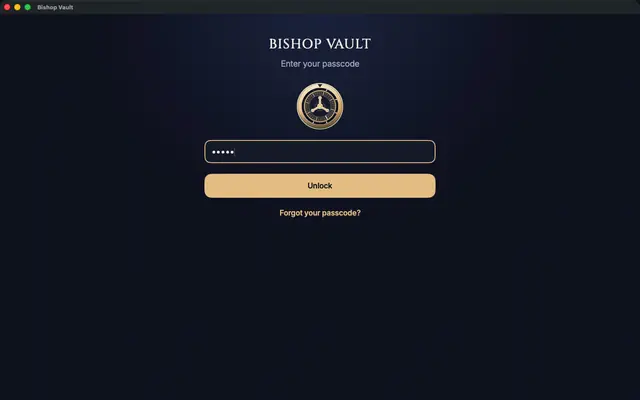
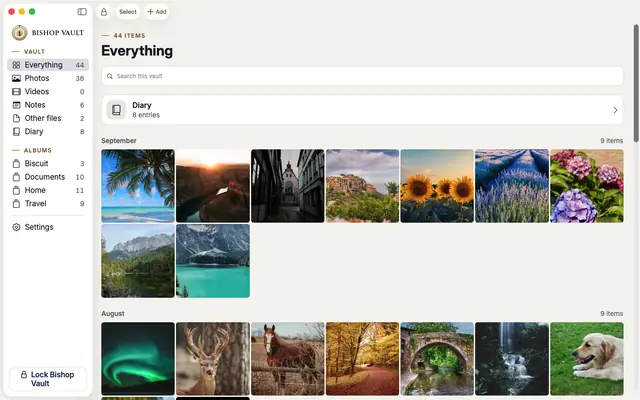
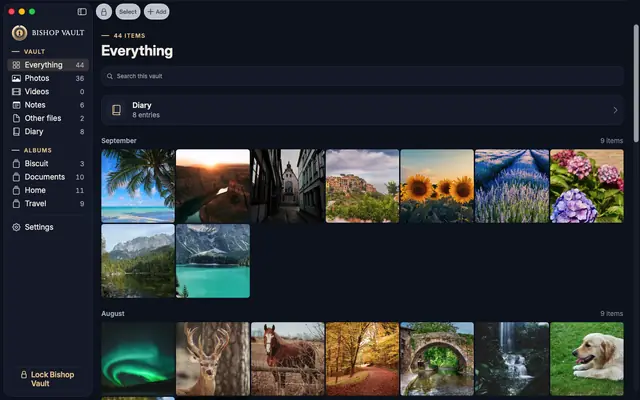
A vault app keeps your private things in its own encrypted store behind its own passcode, and it handles the work an encrypted disk image leaves to you. Bishop Vault is one, and it is built for this job on the Mac as a native app:
- A sidebar, so you browse by Photos, Videos, Notes, or other files, and you drag photos from Photos and files from Finder straight into the window.
- Its own passcode of at least 8 characters, and Touch ID only if you turn it on. Bishop Vault asks for the passcode again after a restart, after 7 days, and after 5 tries that don’t recognize you.
- It locks when the Mac sleeps, when the screen locks, or when you switch users, and you can set it to lock after 1, 5, 10, or 15 minutes in the background, or never. You can also lock it at once with Control-Command-L.
- Each photo, video, note, and file is encrypted on its own, and names, dates, and sizes are kept inside the encryption. Location data is removed from every photo and video as it comes in.
- Nothing from the vault shows up in Photos, and the files it keeps on the disk are encrypted.
- A scanner that works with your iPhone or iPad: it cleans the page, saves one PDF, and reads the words on your device so search can find them.
- A printable recovery kit, because there is no account and no one to reset a passcode for you.
Read how the encryption works for the details. It protects against everyday snooping. It can’t stop spyware already on your device, or someone watching you type your passcode. No outside security review yet.
Side by side
| Option | Its own passcode | Good for | Weak spot |
|---|---|---|---|
| Photos locked album | No: Touch ID or your login password | Keeping a few photos out of the main grid | Anyone with your login password; photos only |
| FileVault | No: your login password | A lost or stolen Mac | Nothing separates private files once you are logged in |
| Encrypted disk image | Yes, a password you choose | Any files, for free | Manual; no thumbnails or search; you must close it |
| Vault app (Bishop Vault) | Yes, plus optional Touch ID | Photos, scans, notes, and files you browse and search | Can’t stop spyware or someone watching you type. No outside security review yet. |
How to choose
- Turn FileVault on first. It costs nothing and covers everything on the disk.
- A few photos you only want out of the main grid: the locked album in Photos is enough.
- Private files you rarely open, and you don’t mind doing the work: an encrypted disk image.
- Photos, scans, and notes you keep adding to and want to find again: a vault app. This is where Bishop Vault fits.
Whatever you choose, back it up. A vault is only useful if you can still open it, so keep your recovery key, recovery kit, or disk image password somewhere other than the Mac.
When you don’t need Bishop Vault
If your Mac is yours alone, FileVault is on, and you have a handful of photos you just want out of sight, the Photos locked album or a password-protected disk image is enough. You don’t need another app. A vault app earns its place when you want a separate passcode, a locked app that you open on purpose, and one place for photos, scans, notes, and files that you can search. Bishop Vault is coming soon to iPhone, iPad, and Mac.
Facts checked on October 25, 2026
These outside facts were read on October 25, 2026. Apple can change its software and its pages, so check the page if it matters.
- Photos locked album, the Touch ID or login password unlock on a Mac, macOS Ventura and later, and iCloud Photos on other devices: Apple Support, https://support.apple.com/en-us/104987 (read October 25, 2026).
- FileVault, automatic encryption on Apple silicon and T2 Macs, and the recovery key warning: Apple Support, https://support.apple.com/guide/mac-help/protect-data-on-your-mac-with-filevault-mh11785/mac (read October 25, 2026).
- Creating an encrypted disk image and the forgotten password warning: Apple Support, https://support.apple.com/guide/disk-utility/create-a-disk-image-dskutl11888/mac (read October 25, 2026).
Facts about Bishop Vault come from its own help and source.
Keep reading
See how Bishop Vault encrypts your things, or read the comparison with locking photos in Apple Photos, the guide on storing ID documents on iPhone, and the one on keeping a private diary.
Coming soon to iPhone, iPad, and Mac.