Everything Bishop Vault does
Everything here is built into the app. Each feature shows the devices it works on, and whether it is free or part of Bishop Vault Plus.
Keep everything in one place
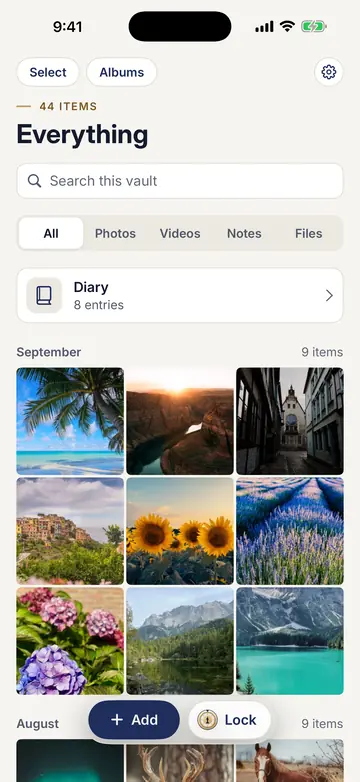
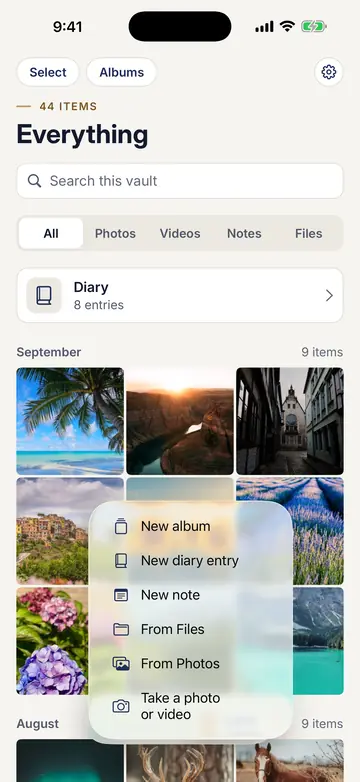
- Photos and videos. Add them from Photos. You can also choose to delete the originals from Photos, which keeps them in its Recently Deleted album for 30 days.
- Drag and drop. Drag photos from Photos, or files from Finder, into the window.
- Camera. Take a photo or video straight into the vault. It never goes to Photos.
- Any kind of file. Bring files in from Files.
- Notes. Plain text, encrypted like a photo. Good for recovery codes, safe combinations, and gate codes. Passwords belong in a password manager.
- Albums. Group items inside a vault. Album names are encrypted too.
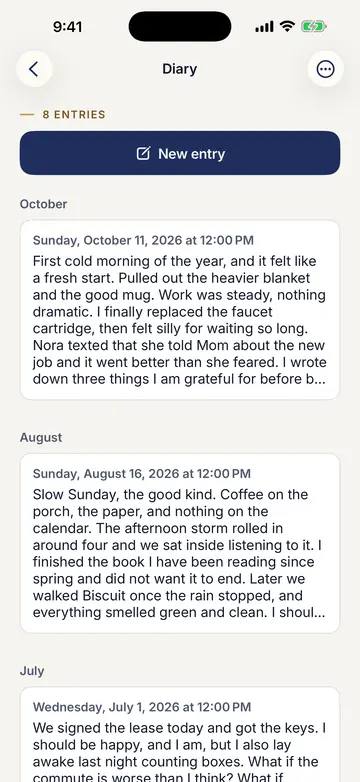
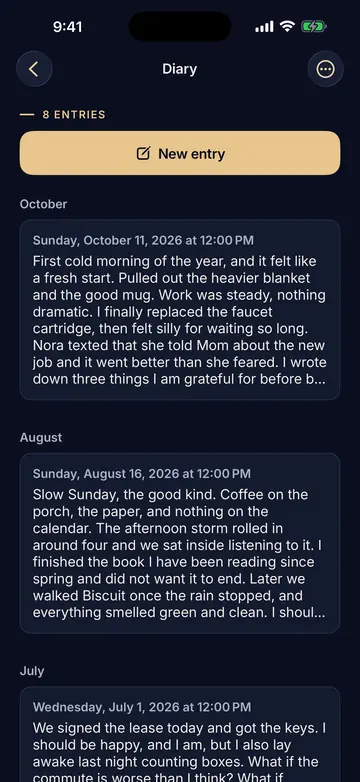
- A private diary. Dated entries, newest first, with search and an export to one text file. It has no reminders, notifications, badges, widgets, or streaks. If Plus ends, you keep your diary: you can still read, edit, export, and delete every entry, but you can’t add new ones.
Scan documents
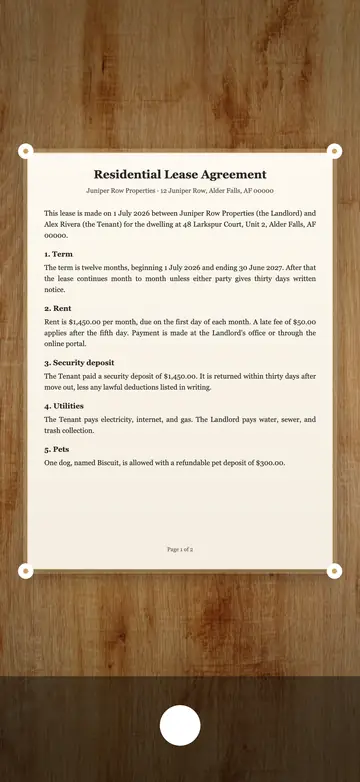
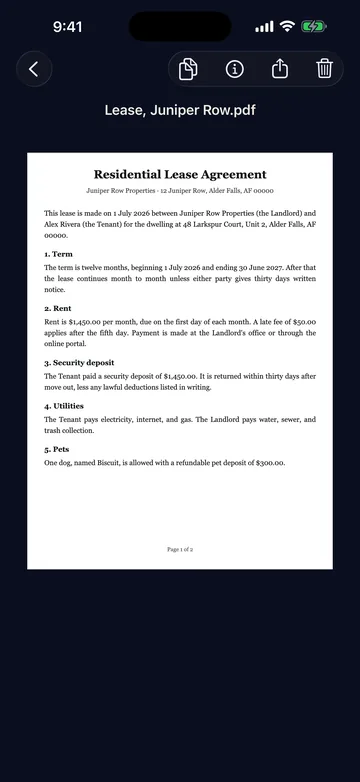
- Scan a document. Each page is cleaned up (whiter paper, lifted shadows, sharper text) and saved as one PDF. Scans are read on your device with optical character recognition (OCR), which turns the printed words in a photo into real text, so you can search for a word and find the page. The words never leave your device.
- Scan from the Mac. Use an iPhone or iPad nearby that is signed in to the same Apple ID. The scan comes in as the iPhone or iPad made it.
- Color, Greyscale, or Black and white. Choose how scans look. Color is the default.
- Copy text from a scan. The text stays on the device and is cleared after 1 minute, or when the vault locks.
Find things
- Search. Search names, notes, diary entries, and the words in scans. Capitals and accents don’t matter, and search forgets everything when the vault locks.
- Browse by kind. A sidebar on Mac, and on iPad held full width. A bar under search on iPhone.
- A full viewer. Swipe between items, pinch to zoom, play videos, and see Info. Arrow keys work on a Mac.
Lock it down
- Its own passcode. It needs at least 8 characters, with a strength meter as you type.
- Face ID or Touch ID. Only if you turn it on, and never your device passcode. The vault passcode is needed again after a restart, after 7 days, and after 5 tries that don’t recognize you.
- Longer waits after wrong passcodes. After 5 wrong tries, each one brings a longer wait: 30 seconds, then 1, 5, 15, and 60 minutes. The count is stored on your device, so reinstalling doesn’t reset it.
- Strict lockout. After repeated wrong passcodes, every vault on this device needs two steps to open: Face ID or Touch ID to confirm it's you, then the passcode. If Face ID or Touch ID can't be used, only the recovery code opens a vault. Off until you turn it on.
- Intruder photos. After a few wrong passcodes in a row, the front camera takes one photo, encrypted the moment it's taken, while the app is still locked. It stays on this device. You choose to turn it on, and the app asks for camera access when you do. On iPhone and iPad, iOS may play its shutter sound, and the Mac shows its camera light. Bishop Vault adds no sound of its own. Off until you turn it on.
- Locks every time you leave the app. The app switcher shows a blank cover.
- Locks when you step away. The Mac locks the vault when it sleeps, its screen locks, or you switch users, and when you minimize the app or put it away with Command-H, unless you turn that off. Choose Lock after 1, 5, 10, or 15 minutes in the background, or never, or use Lock now (Control-Command-L).
- Supports more than one vault. On the free plan, that means up to 25 items in each vault.
Private by design
- No photo locations. Location data is removed from every photo and video as it comes in. A video is refused if any is left.
- Out of sight. Nothing in the vault shows up in Photos, Files, or the app switcher.
- Private typing. Autocorrect, spell check, suggestions, and Writing Tools are off in notes and the diary. On iPhone and iPad, other companies' keyboards never work in Bishop Vault.
- Copied text stays on the device. It is cleared after 1 minute, or when the vault locks.
- Notes are blanked while the screen is recorded or shared.
- Passcode fields never offer to save to Passwords. The passcode, recovery code, and key fields tell iOS and macOS they are one-time codes.
- Videos play without writing anything decrypted to disk. When you export, the temporary copy Bishop Vault made is cleared when you’re done, and the copy you saved is no longer encrypted.
- No account. No sign-up, no email, no tracking. No analytics.
Never lose it
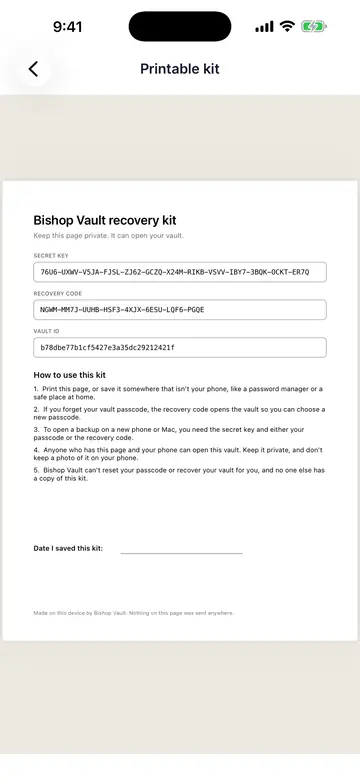
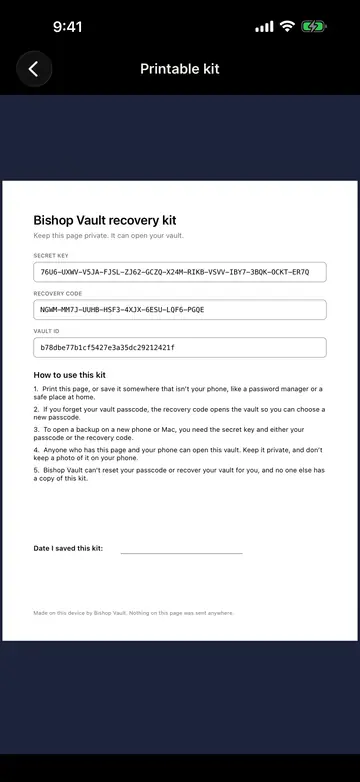
- A printable recovery kit. It holds the vault ID, the long key, and the recovery code. Keep it somewhere other than the device. You will need it on a new phone, and you can make a new kit at any time.
- Forgot your passcode? Use the recovery code from the kit, then choose a new passcode.
- Back up, restore, and bring items in. Back up vault makes one encrypted file that you keep somewhere else. Restore from backup opens it. Bring in items from a backup copies items into the vault that is open.
- Everything stays yours. Even without Plus, you can open, edit, copy, export, delete, and back up every item.
Made for each device
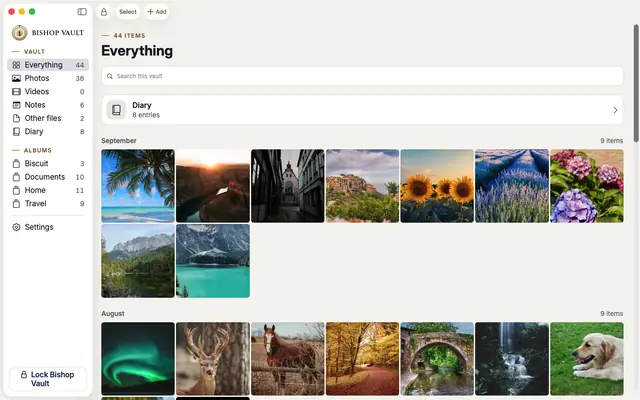
- A native Mac app. A sidebar, Touch ID, and drag and drop.
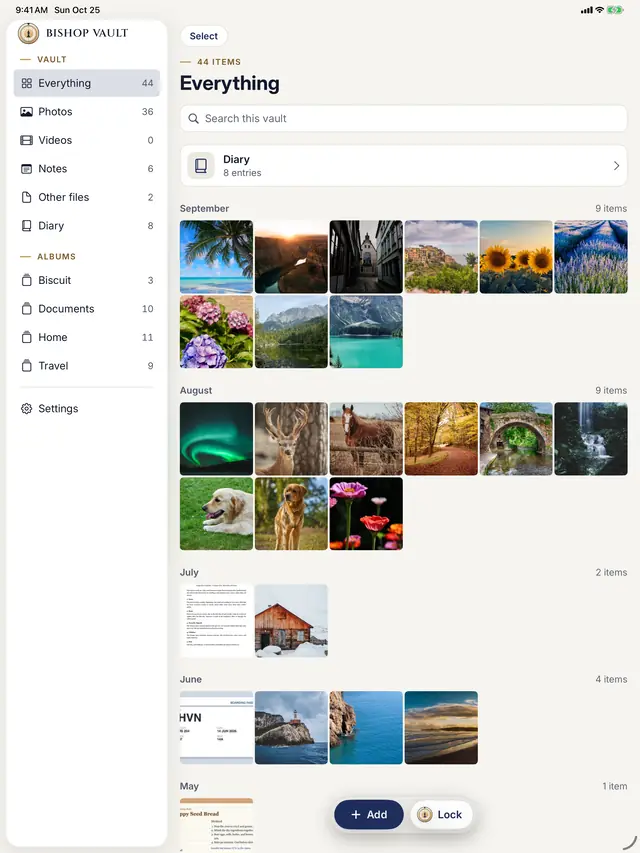
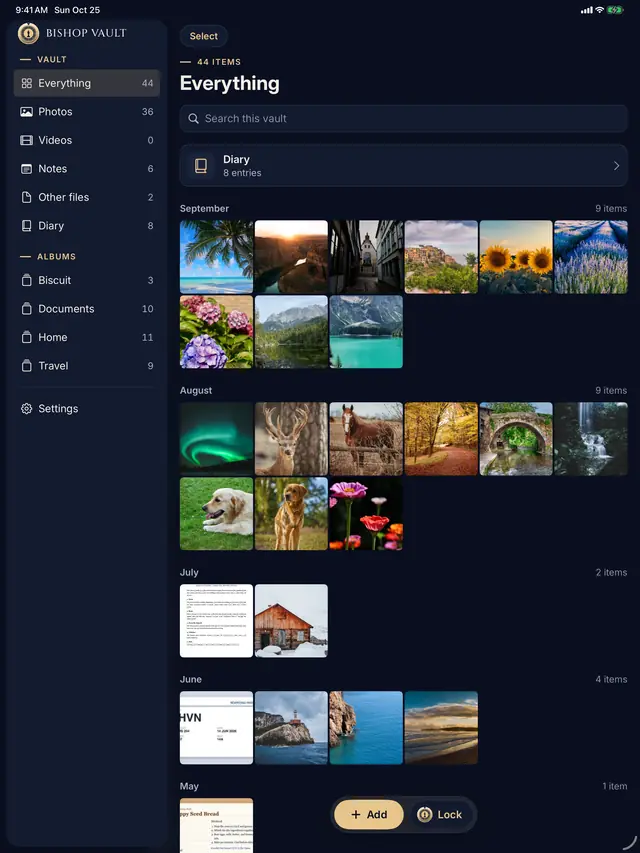
- A sidebar layout on iPad. Held full width, it lists your albums and the diary.
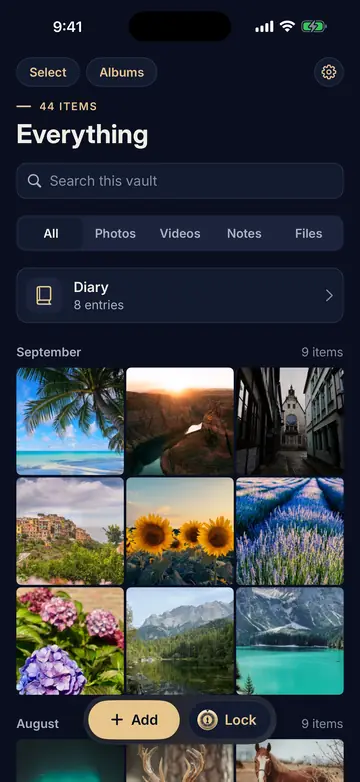
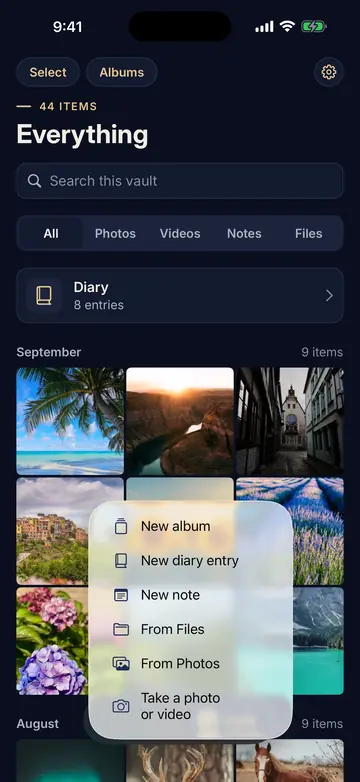
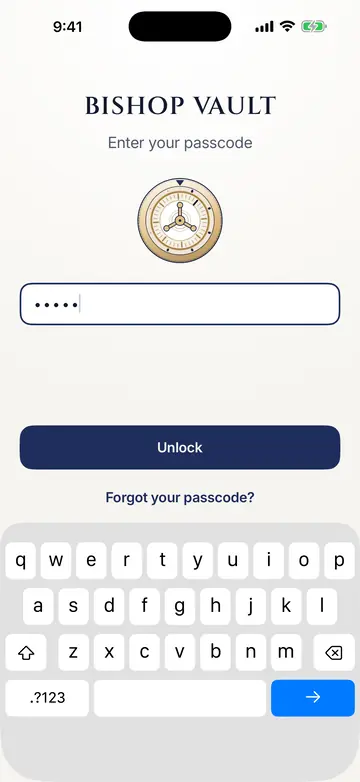
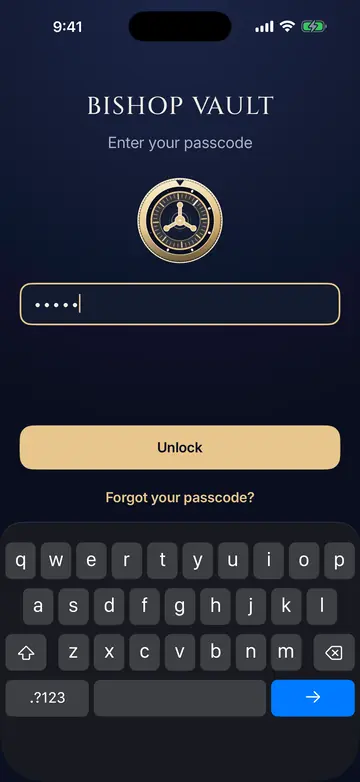
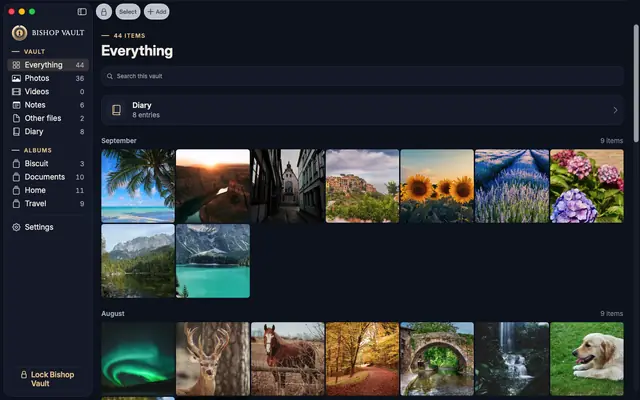
- Light and dark. It also follows Dynamic Type and Bold Text.
- The unlock dial. It turns when the vault opens. With Reduce Motion on, a short fade plays instead. You can turn the animation off.
- Pick the icon color. Midnight, Ivory, Forest, Oxblood, or Graphite. It is the same dial in another color, and the name under it stays Bishop Vault.
- Help is built in. It is searchable and works offline.
What Plus adds
No limit on items, plus albums, the diary, strict lockout, and intruder photos. See pricing, or read how the encryption works.
Coming soon to iPhone, iPad, and Mac.