How to keep photos private on iPhone
By Bishop Technology Solutions, LLC, the maker of Bishop Vault. Facts checked October 25, 2026.
The short answer
You have four real choices. Apple’s locked album in Photos keeps private photos out of your main library and behind Face ID or Touch ID. Locking the Photos app itself makes the whole app ask before it opens. A locked note is good for text, such as codes. And a vault app encrypts your photos on their own, behind a passcode of their own. The first two are free and already on your iPhone. They are enough for most people. A vault app is for the person who needs more than a lock on a screen.
None of these choices stops everything. Pick by asking who you are keeping the photos from, and what that person can do.
Start with who you are keeping them from
The right choice depends on the person.
- Someone who picks up your unlocked phone for a minute. A friend, a child, a roommate, or a partner scrolling through Photos. A lock on the album or on the app stops this.
- Someone who knows your phone’s passcode. Now the phone’s own lock is not in the way, so what matters is whether the photos have a lock of their own.
- A thief. This is mostly about protecting the phone itself, and then about whether the photos are encrypted.
- Someone who copies the files off the phone. Only real encryption helps here, and a long passcode makes it much harder to guess past.
- Someone who has put spyware on it, or who makes you open it. No photo setting solves this. See what a photo vault can’t protect you from.
Option 1: the locked album in Photos
Since iOS 16, iPadOS 16.1, and macOS Ventura, Apple’s Photos app has an album that is locked by default. On an iPhone you open it with Face ID or Touch ID. Apple says photos you move into it don’t appear anywhere else in Photos, such as the Library or other albums, or in the Photos widget on the Home Screen. If you use iCloud Photos, Apple says the photos you move there are moved the same way on your other devices.
It is free, it takes seconds, and it is the right answer for the casual snoop. A few honest limits:
- On iPhone and iPad the album is visible in the Photos app by default. You can choose not to show it at all in Settings, then Apps, then Photos. Apple also says the album’s lock can be turned off in the same place. Check that it is still on.
- The photos are still part of your Photos library. They go to iCloud Photos if you use it. Apple says that without Advanced Data Protection, Apple holds the keys to your iCloud Photos. Advanced Data Protection is optional, and turning it on makes Photos end-to-end encrypted, with the keys only on your trusted devices.
- Apple describes the lock as Face ID or Touch ID. It does not describe a separate passcode for the album, so it is as strong as the unlock of your phone.
Photos you delete go to a Recently Deleted album first. Apple says they stay there for 30 days, and that this album is locked by default too. It is worth knowing about if you are trying to get rid of a photo for good.
Option 2: lock the Photos app
On iOS 18 and later you can touch and hold an app icon and choose to require Face ID, Touch ID, or your passcode to open it. Apple says the app locks again when you leave it. Apps you downloaded can also be taken off the Home Screen and out of search. Apple says apps that come installed, such as Photos, can be locked but stay on the Home Screen, and that an app’s locked status applies only to that iPhone.
This is a lock on opening the app, and it is good against a quick look. Apple’s page describes it as asking you to authenticate and says nothing about encrypting your photos any differently, so your photos are stored as before.
Option 3: a locked note, for text and codes
The Notes app can lock a note with your device passcode or with a separate Notes password. Apple says both use end-to-end encryption for iCloud accounts, that Apple can’t recover a forgotten Notes password, and that notes with PDFs, audio, or video can’t be locked. This is a good place for a gate code or a Wi-Fi password. It is not a place for a photo library. Passwords belong in a password manager.
Protect the phone first
Everything above depends on the phone staying locked. Two things help most. Use a long passcode, not four or six digits. And if you have iOS 17.3 or later, turn on Stolen Device Protection. Apple says that when your iPhone is away from familiar places, it requires Face ID or Touch ID with no passcode fallback for some actions, and adds a one-hour wait before changes such as a new Apple Account password. That is aimed at a thief who has watched you type your passcode. It has to be turned on before the phone is lost.
Option 4: a vault app
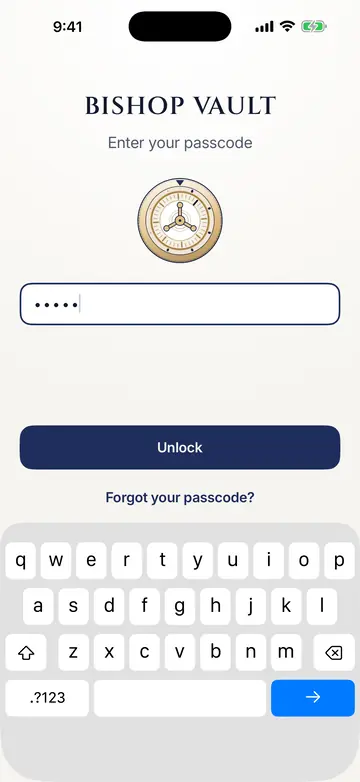
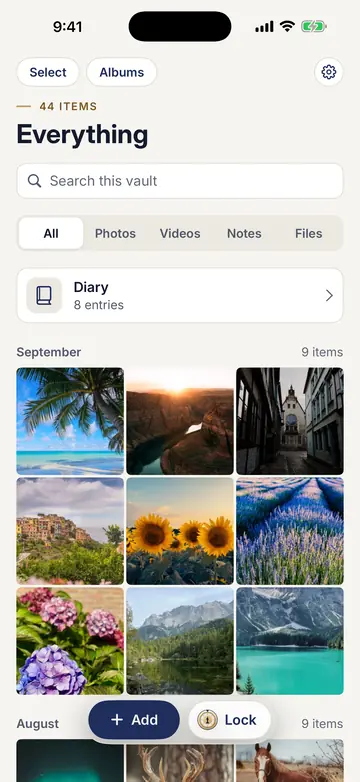
A vault app keeps photos in its own storage, so they are not in your Photos library at all, and protects them with its own passcode. Done well, it encrypts them with a key built from that passcode, so a copy of the files is noise without it. Done badly, it only moves the pictures to another folder and puts a lock screen in front. The difference matters, and you can check it. The checklist is in is a photo vault app safe.
A vault app is worth it when:
- you want your private photos out of Photos, so they never show in the library, memories, or a widget;
- you want a passcode that is different from your phone’s, so knowing one does not give away the other;
- you also keep documents, notes, or scans that you want in the same encrypted place.
Bishop Vault is one such app, coming soon to iPhone, iPad, and Mac. It has its own passcode, encrypts each item on your device, needs no account, and removes location data from every photo and video as it comes in. Bishop Vault protects against everyday snooping: a partner, family member, roommate, friend, or thief holding your unlocked phone. It can’t stop spyware already on your device, or someone watching you type your passcode. No outside security review yet. How it works explains the encryption in plain words.
What each choice protects
- The locked album. Stops a quick look in Photos. Does not give the photos a passcode of their own, and Photos still holds them.
- Locking the Photos app. Stops the app from opening.
- A locked note. Good for text. Not for a photo library.
- A vault app. Gives photos their own passcode and, if it is built properly, their own encryption, outside Photos. Needs you to look after a recovery kit or code, because no one can reset it for you.
- A strong phone passcode with Stolen Device Protection. Protects everything, and is the base the rest sit on.
When you don’t need Bishop Vault
If the only person you worry about is someone borrowing your phone, the locked album is enough, and it costs nothing. If you only want to keep a few codes private, a locked note does it. If you share your Apple Account or your phone’s passcode with the person you are worried about, no app fixes that. Choose a vault app when you want photos out of your library, behind a separate passcode, with real encryption, and you are willing to keep a recovery kit. The side-by-side of Apple Photos’ locked album and Bishop Vault lays out the differences with sources.
Facts checked on October 25, 2026
Outside facts come from these pages, read on that date. Bishop Vault facts come from its own Help and technical notes.
- Apple, locked album and Face ID or Touch ID, iOS 16 and later: https://support.apple.com/en-au/104967 and https://support.apple.com/en-au/104987
- Apple, locking an app on iPhone, iOS 18: https://support.apple.com/guide/iphone/lock-or-hide-an-app-iph00f208d05/ios
- Apple, lock notes: https://support.apple.com/en-us/102537
- Apple, Advanced Data Protection for iCloud: https://support.apple.com/en-us/102651
- Apple, Stolen Device Protection: https://support.apple.com/en-us/120340
Apple changes these features with each release. If your iPhone looks different, trust the screen in front of you.
Keep reading
See how Bishop Vault keeps your things private, or read is a photo vault app safe and the Apple Photos comparison.
Coming soon to iPhone, iPad, and Mac.